

By Planet Geek LLC Editorial Team · Updated 2026-09-04
Homeowners and business owners across Phoenix Metro rarely need a networking degree — they need a setup that just works: no dead zones on the patio, no dropped video calls, no guessing which router to grab off a shelf. Types of network setups range from a single consumer router to a fully engineered system built on structured cabling, managed switches, hardwired access points, and segmented VLANs. Planet Geek LLC, a licensed (ROC #357379) technology integration firm based in Chandler, AZ, designs networks sized to how a property is actually used — not just what fits in a box.
This guide focuses on the practical side of choosing a setup: the real architecture options, what each one trades off, and how to match a design to a home’s layout, a business’s device count, and Arizona’s climate — covering the full range of home network setup types available today. For a deeper look at the cabling itself — cable types, costs, and installation methods — see our structured and low-voltage wiring guide.
Not sure which setup fits your property? Get a Free Consultation and we’ll walk through it with you.
Key Takeaways
- Network setups range from a single wireless router to fully engineered systems with structured cabling, managed switches, and hardwired access points.
- The right choice depends on device count, building layout and materials, coverage needs, and how much reliability matters for cameras, smart-home gear, and remote work.
- Consumer mesh kits are easy to buy but lose speed at each wireless hop; hardwired access points hold performance consistently across a full property.
- Managed networks with VLAN segmentation separate guest devices, security cameras, and IoT gadgets from primary traffic, improving both security and performance.
- Phoenix’s summer heat adds real stress to cabling and equipment, so where hardware is placed and how it’s rated matters as much as the equipment itself.
What Should You Know Before Choosing a Network Setup?
Several factors determine which network configuration fits a property best: device count, building layout, wiring condition, and local climate. A computer network, at its core, connects two or more devices so occupants can share data, resources, and services across a home or office. Skipping the evaluation stage often leads to dead zones, dropped calls, and equipment that never performs as promised.
Connected devices keep multiplying inside homes and small offices, from smart thermostats to security cameras to voice assistants. That growth increases the demand a network has to handle simultaneously, without slowing down. Choosing among the various types of network setups starts with recognizing this rising load — not just today’s needs but next year’s.
Why does wiring matter so much in a smart home?
Low voltage wiring forms the backbone behind internet access, security cameras, thermostats, and lighting controls. Poor cabling causes smart devices to lag or fail outright, even when the equipment itself is high quality.
Does Phoenix's climate affect network equipment?
Extreme heat across the Phoenix Metro area places added stress on cabling and networking hardware, especially gear mounted in garages, attics, or exterior enclosures. Sound design work, completed before installation, protects performance and equipment lifespan.
Before selecting a setup, property owners should confirm:
- Current and anticipated device count
- Existing wiring condition and cable pathways
- Indoor and outdoor coverage needs
- Climate exposure for equipment placement
Planet Geek LLC, a licensed (ROC #357379) team based in Chandler, Arizona, evaluates these factors before recommending a solution.
What Are the Main Types of Network Setups?
Types of network setups span a spectrum from a single router in a closet to a fully managed, segmented system. Here’s what each option actually is, and who it fits.
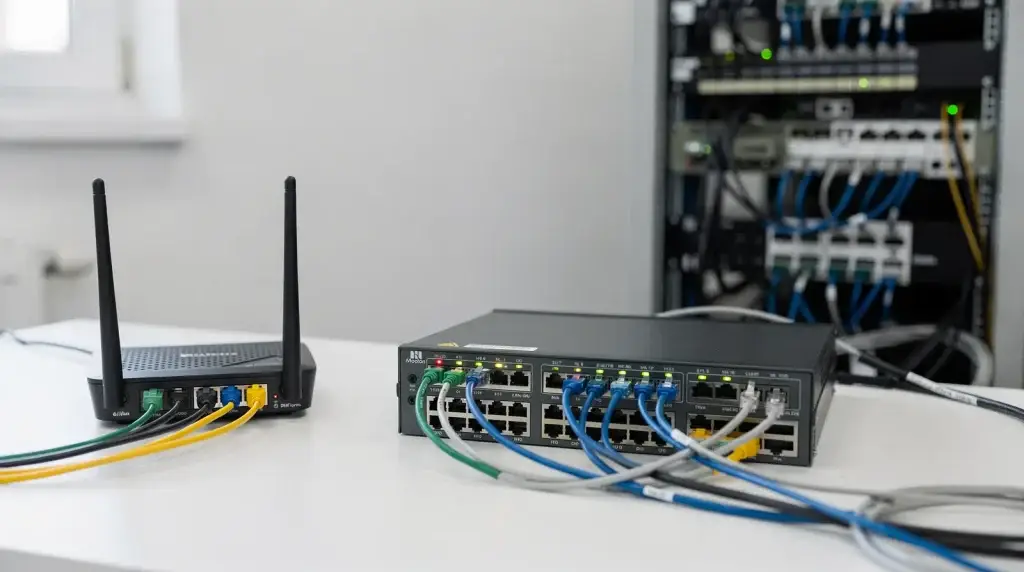
Wired Ethernet network. Every device connects to a switch or router with a physical Cat6/Cat6a cable. This is the fastest and most reliable option available, and it’s naturally resistant to wireless interference, since a cable’s performance doesn’t depend on a neighbor’s Wi-Fi or a thick wall getting in the way. It works best for stationary devices — desktops, TVs, AV racks, and security cameras — where mobility isn’t required.
Wireless LAN (WLAN). A single router or access point broadcasts Wi-Fi to every device on the property. It’s the simplest setup to install and the one most homes start with. Coverage and speed drop off with distance, walls, and interference, so a WLAN built around one router struggles in larger homes or stucco-and-block construction typical of Phoenix Metro.
Wired-plus-wireless hybrid. Ethernet handles fixed, high-demand devices (AV equipment, cameras, workstations) while Wi-Fi covers phones, tablets, and laptops. This is the most common setup Planet Geek installs, because it puts bandwidth where it’s needed most without wiring every single device.
Hardwired access-point system. Multiple access points, each fed by its own Ethernet run, blanket a property in strong Wi-Fi instead of relying on one router to reach every room. Because each access point gets a dedicated wired connection back to the network — rather than relaying wirelessly to the next unit — coverage stays strong and consistent from the front door to the back patio.
Consumer mesh Wi-Fi. Mesh kits from big-box retailers extend coverage without new cabling, using wireless “backhaul” to relay the signal between units. That convenience comes with a tradeoff: each wireless hop between mesh units can reduce throughput, with the actual impact depending on how many hops a signal travels, the radios and Wi-Fi standard the units use, and real-world conditions like wall placement and interference. A signal that crosses two or three units before reaching a device will often arrive slower than it left the router, though well-placed, modern mesh hardware can narrow that gap. In the mesh WiFi vs hardwired network comparison, that hop-by-hop tradeoff is the core distinction: a hardwired access-point system skips the relay chain entirely by giving each point its own dedicated Ethernet run.
Managed network with VLAN segmentation. A managed switch and router let an installer split traffic into separate virtual networks — one for trusted household or office devices, one for guests, one for IoT gadgets and cameras. This limits what a compromised smart device or guest device can reach, and it’s standard practice for businesses and increasingly common in higher-end homes with dozens of connected devices.
Personal Area Network (PAN). A PAN connects personal devices within a few feet of each other — a phone pairing with wireless earbuds or a smartwatch is a familiar example. No cabling or property-wide design is involved. A PAN handles individual convenience, not whole-property coverage, so it isn’t a substitute for a designed network.
Wide Area Network (WAN) considerations. For most single-location homes and small offices, “WAN” mainly refers to the internet connection coming in from the ISP. It becomes a real design factor only for businesses connecting multiple locations — for example, linking a Phoenix office to a second site — where routing traffic reliably between sites matters. Most residential projects won’t need to plan around WAN architecture beyond choosing a solid internet connection.
Comparing the Main Network Architectures
| Setup Type | Speed & Reliability | Roaming Across Rooms | Security | Best For |
|---|---|---|---|---|
| Wired Ethernet | Highest — unaffected by walls or interference | N/A (fixed devices) | Strong — physical connection only | Stationary gear: AV racks, cameras, workstations |
| Single-router WLAN | Moderate, drops off with distance | Weak in larger homes | Basic, depends on router | Small homes/offices, light device counts |
| Wired + wireless hybrid | High for wired devices, good for wireless | Good | Strong | Most homes wanting reliability without full wiring |
| Hardwired access-point system | High and consistent property-wide | Excellent — smooth handoff | Strong | Larger homes, outdoor coverage, camera-heavy properties |
| Consumer mesh (wireless backhaul) | Can decrease with more hops or weaker conditions | Good | Basic | Renters or small spaces without wiring access |
| Managed network with VLANs | High, plus traffic control | Excellent (with wired APs) | Highest — segmented traffic | Businesses, smart-home-heavy properties, security-conscious owners |
Tradeoffs That Actually Matter
- Speed and reliability: Wired connections are the most consistent; wireless is more convenient but more susceptible to interference, distance, and congestion.
- Roaming: Moving through a large home or office on a call or video stream works best with hardwired access points handing off the connection smoothly and without interruption, not a single router or a chain of mesh units.
- Security: VLAN segmentation limits what a breached device can reach. A flat network — everything on one Wi-Fi network — gives a compromised camera or smart plug the same access as a work laptop.
- Device count: A handful of devices runs fine on a single router. Dozens of smart devices, cameras, and guest connections need a network built to handle simultaneous load, not a consumer router pushed past its limits.
- Cameras and smart-home equipment: Cameras benefit from wired PoE connections where possible — steadier bandwidth and no reliance on Wi-Fi congestion. Smart-home hubs and sensors are usually fine on a segmented wireless VLAN.
- Guest networks: A separate guest VLAN keeps visitors off the primary network without sharing passwords to trusted devices or cameras.
- Phoenix building materials and heat: Stucco, block, and multi-story construction common in Phoenix Metro attenuate Wi-Fi signal more than drywall framing, which is one reason single-router setups underperform here. Extreme summer heat also stresses equipment mounted in garages, attics, or outdoor enclosures, making equipment placement and cable/hardware ratings part of a sound design.
Weighing setups against your own home or business? Get a Free Consultation — we’ll help match the architecture to your property.
What Common Mistakes Cause Network Setups to Fail?
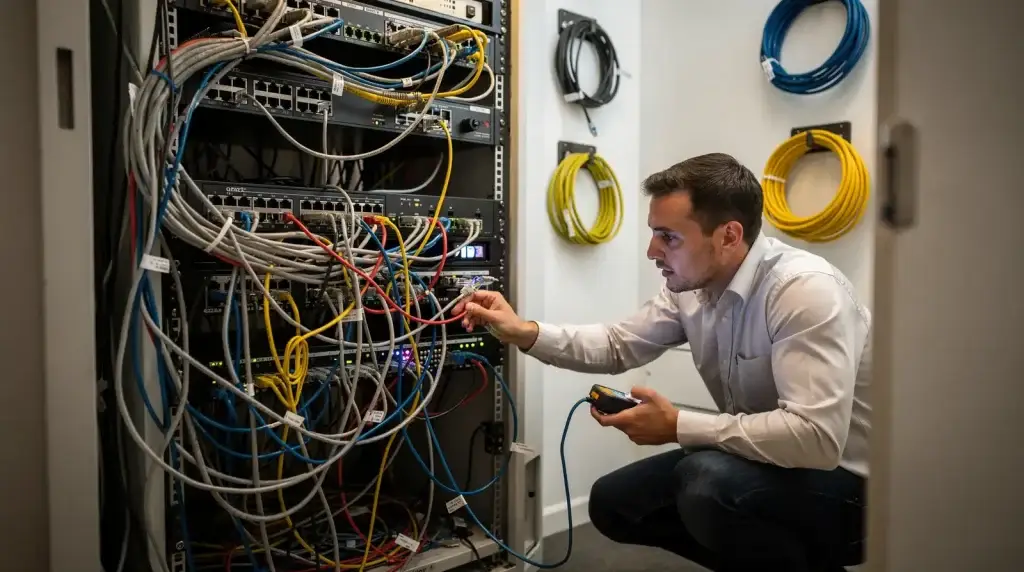
Weak equipment and poor planning cause most home and business network failures. Standard types of network setups break down when builders rely on default hardware instead of designed systems. The consequences show up as dead zones, dropped calls, and frustrated households.
Routers supplied by internet providers frequently carry weak radios and lack any real management tools, leaving whole-home coverage unreliable from day one. Many homeowners then upgrade to big-box mesh kits expecting a fix, unaware that wireless backhaul — the connection between mesh units — can reduce network speed, with the effect growing as more hops, weaker radios, or challenging conditions are added to the chain.
Why do WiFi dead zones keep appearing in certain rooms?
Dead zones typically trace back to inadequate planning rather than bad luck. Bedrooms, patios, casitas, and garages are common blind spots when a network isn’t designed to cover a home’s actual footprint.
Can too many smart devices overwhelm a home network?
Yes. A single consumer-grade router can struggle once dozens of smart home devices connect simultaneously, choking performance for everyone on the network.
Common failure points include:
- Unmanaged, underpowered router hardware from the ISP
- Wireless-backhaul mesh systems losing speed at each hop
- Uncovered zones in bedrooms, patios, casitas, and garages
- Overloaded routers strained by too many connected devices at once
- No visibility into connected devices or bandwidth usage
That last gap — not knowing what’s on the network or who’s consuming bandwidth — leaves owners troubleshooting blind when problems arise.
A Practical Decision Checklist
Before settling on a setup, walk through this list:
- Count your devices — phones, laptops, TVs, cameras, smart-home gear, and anything likely to be added in the next year or two.
- Check wiring access — is there attic, crawlspace, or conduit access to run Ethernet where it counts?
- Map the property — square footage, number of stories, and building materials (stucco and block attenuate Wi-Fi more than drywall).
- Identify fixed, high-demand devices — AV equipment, workstations, and cameras generally perform better wired.
- Plan for outdoor and detached coverage — patios, casitas, pools, and detached garages need to be designed in, not added as an afterthought.
- Decide if segmentation matters — businesses and camera- or IoT-heavy homes benefit from VLANs separating guest, IoT, and trusted traffic.
- Account for Phoenix heat — equipment in garages, attics, or outdoor enclosures needs proper placement and heat-rated hardware.
- Set a realistic budget — a managed, hardwired system costs more upfront than a mesh kit but avoids the recurring headaches of underpowered gear.
FAQ
What's the difference between a LAN and a WLAN?
A LAN (local area network) is the broader term — it can include both wired and wireless connections within a home or office. A WLAN (wireless LAN) refers specifically to the wireless portion of that network, the Wi-Fi devices connect to rather than plug into. Most modern homes and offices run a hybrid of both — wired connections for fixed, high-demand devices and Wi-Fi for everything else. Deciding on a LAN vs WLAN setup usually isn’t an either/or choice; it’s about assigning each type of traffic to the connection it performs best on.
Is mesh Wi-Fi as good as a hardwired access-point system?
Not quite. Consumer mesh kits are easier to install since they don’t require new cabling, but each wireless hop between units can reduce speed. A hardwired access-point system, where each access point has its own Ethernet run back to the network, holds performance and roaming quality more consistently across a full property.
When does a business need a managed network instead of a basic router?
Once a business has multiple staff devices, security cameras, point-of-sale systems, or guest Wi-Fi to manage, a managed network with VLAN segmentation becomes worthwhile. It isolates traffic types from each other, which limits the damage if any single device is compromised and makes troubleshooting far easier.
What role does wiring play in network performance?
Poor cabling causes smart devices to lag or fail, even with high-quality equipment. Structured, properly rated cabling behind walls and ceilings is what lets access points, cameras, and switches perform to spec.
Why should Phoenix Metro property owners plan network design carefully?
Arizona’s triple-digit summers can quietly degrade cabling and networking hardware over months and years, and stucco or block construction can weaken Wi-Fi signal more than typical drywall framing. Engineering the system correctly from the outset — rather than patching problems after they surface — preserves both performance and long-term equipment life.
Conclusion
Choosing among the types of network setups comes down to matching architecture to how a property is actually used — not defaulting to whatever router shipped with the internet plan. A single WLAN might suit a small apartment; a hybrid wired-and-wireless design covers most homes well; and a managed, VLAN-segmented network earns its keep once cameras, smart-home devices, and guest traffic start piling up. Phoenix’s building materials and summer heat make thoughtful placement and quality cabling worth the extra planning, not an afterthought.
A network designed around your device count, your building, and your climate will outperform and outlast one assembled from mismatched, off-the-shelf parts. If you’re ready to stop troubleshooting dead zones and design it right the first time, Get a Free Consultation with Planet Geek LLC.